
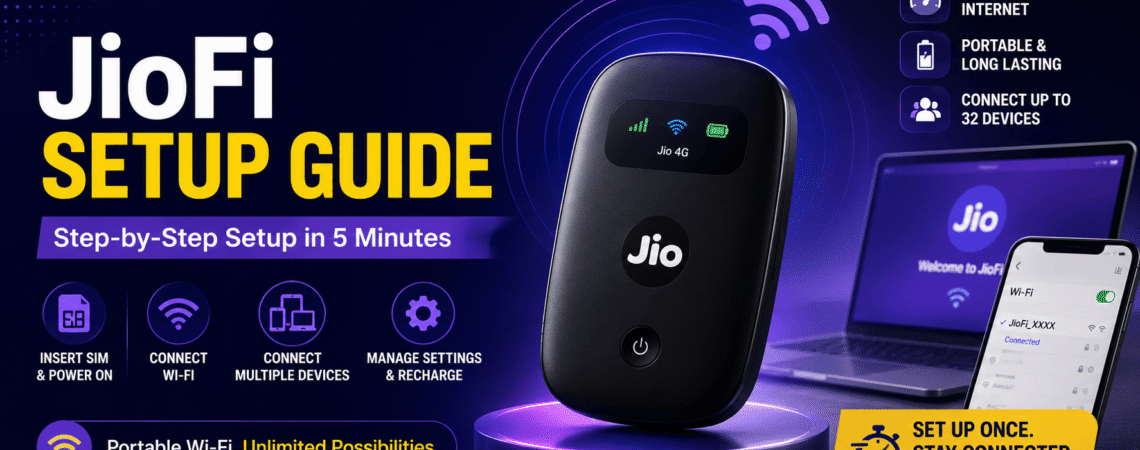
If you just got a JioFi device and are staring at it wondering where to even begin — this guide is for you. JioFi is one of the most practical devices Jio makes. It is essentially a pocket Wi-Fi router that converts Jio’s 4G signal into a Wi-Fi hotspot, letting you connect your laptop, tablet, smart TV, and phone to the internet without any cables or broadband installation.
Setting it up takes under five minutes — but only if you know the steps. This guide walks you through everything from inserting the SIM to connecting all your devices, managing settings, and fixing common problems.
If you are also comparing JioFi with JioFiber, check our JioFiber Plans 2026 guide to see which option suits your home better.
What is JioFi — And Who Should Use It?
JioFi is a portable Wi-Fi broadband device that works like a personal hotspot, letting multiple users and mobile devices connect to Jio’s 4G high-speed network simultaneously.
It is not the same as a JioFiber broadband connection. JioFi uses Jio’s mobile 4G network — which means it works anywhere Jio has signal, without any cables or installation required.
| Criteria | JioFi | JioFiber |
|---|---|---|
| Connection type | 4G wireless (portable) | Fixed fiber cable |
| Installation needed | No — plug and use | Yes — technician required |
| Works without power socket | Yes — built-in battery | No |
| Best for | Travel, rental homes, offices | Permanent homes |
| Max speed | Up to 150 Mbps | Up to 1 Gbps |
| Devices supported | Up to 10–32 devices | Unlimited (router-based) |
Best for: Students in hostels, remote workers, small shop owners, travelers, and anyone in an area where JioFiber is not yet available.
What’s in the JioFi Box?
When you buy a JioFi device, the box typically contains:
- JioFi device (the router itself)
- Rechargeable battery
- Micro-USB charging cable
- Wall charger adapter
- Quick start guide
You will need to separately arrange an activated Jio SIM card (Nano SIM) before you can use JioFi. If you do not have one yet, read our guide on how to get a Jio SIM.
JioFi Setup Guide — Step by Step
Insert the battery and the activated Jio SIM in your JioFi device and switch it on, then turn on Wi-Fi on the device you wish to use — laptops, tablets, mobile phones, gaming devices, cameras, or smart TVs. jiomania
Here is the complete process in detail:
Step 1 — Insert the SIM and battery
Open the back cover of your JioFi device. You will find the SIM card slot and the battery compartment. Insert your Jio Nano SIM card with the chip facing down. Then insert the battery and close the back cover firmly.
Step 2 — Note your Wi-Fi name and password
Before closing the back cover, look at the inside panel — your default Wi-Fi network name (SSID) and default password are printed there. Note them down. The default password is mentioned on the inside panel of the battery cover. jiomania
Step 3 — Switch on the device
Press and hold the power button for 2–3 seconds until the indicator lights turn on. Wait about 30 seconds for the device to fully boot up and connect to Jio’s network.
Step 4 — Connect your device to JioFi Wi-Fi
On your phone, laptop, or tablet, open Wi-Fi settings and search for available networks. You will see the JioFi network name (SSID) — tap on it, enter the password from Step 2, and connect.
Step 5 — Verify the connection
Once connected, open any browser or app and check if the internet is working. The signal indicator on your JioFi device should show a solid light when connected.
💡 Tip: If the device goes into sleep mode, press the power button lightly to bring it back to active mode. During sleep mode, the SSID of your JioFi stops broadcasting and a breathing light can be seen on the power button. Vazoola
How to Change Your JioFi Wi-Fi Name and Password
The default Wi-Fi name and password are not the most memorable. Here is how to change them:
- Connect your phone or laptop to the JioFi Wi-Fi network
- Open a browser and go to 192.168.1.1 (this is the JioFi admin panel)
- Log in with the default credentials — username: administrator, password: administrator
- Go to Wi-Fi Settings
- Change the Network Name (SSID) to whatever you prefer
- Set a new, strong password
- Save the changes — your JioFi will restart briefly and reconnect with the new name and password
⚠️ Important: After changing the password, you will need to reconnect all your devices using the new password. Make sure you note it down somewhere safe.
How Many Devices Can Connect to JioFi?
A portable JioFi device can connect up to 10 devices plus 1 USB connection, making it ideal for collaborative teams and multi-device usage. Some advanced models can even support up to 32 devices simultaneously.
In practice, for smooth performance, keeping the connected devices under 5–6 at a time is recommended — especially if multiple people are streaming or video calling simultaneously.
JioFi Battery Life — What to Expect
JioFi has a built-in 2300 mAh battery to support 5–6 hours of surf time.
In real-world usage, battery life depends on:
- Number of devices connected
- Signal strength in your area
- Whether you are using heavy-data tasks like video streaming
💡 Tip: Avoid overnight charging of the device to extend battery life. Plug it in when the battery is low and unplug once fully charged.
How to Recharge Your JioFi Data Plan
JioFi uses a separate data plan from your regular Jio mobile number. You cannot use your phone’s Jio plan on JioFi — it needs its own recharge.
You can recharge JioFi in four ways:
- MyJio app — Go to Recharge → Enter your JioFi number → Select a data plan → Pay
- Jio.com — Visit the official Jio website and use the recharge section
- Authorised Jio retailer — Visit a store, provide your JioFi number, and pay to complete the recharge Vazoola
- Third-party apps — Use apps like Paytm, Google Pay, or PhonePe — choose mobile recharge, enter your JioFi number, select a plan, and pay Vazoola
To save on recharges, check our guide on Jio bank offers and cashback — many of these work on JioFi recharges too.
Common JioFi Problems and Quick Fixes
JioFi connected but no internet
Make sure your Jio SIM is activated and has an active data plan. Check if the signal indicator is showing network connectivity. If everything looks fine, restart the JioFi device by switching it off and back on.
If the issue persists, check if the user is connected to the JioFi SSID, make sure the SIM card is properly inserted, check if JioFi is connected to the network, and ensure your SIM is activated with adequate data balance available.
Wi-Fi name (SSID) not visible on phone or laptop
The device may be in sleep mode. Press the power button once to wake it up. If that does not work, restart the JioFi device completely.
Forgot JioFi Wi-Fi password
Open the back cover of your JioFi device — the default password is printed inside the battery compartment. If you changed it and forgot, you will need to reset the device to factory settings by holding the reset button (usually a small pinhole) for 10 seconds.
JioFi speed slow despite good signal
Too many devices connected simultaneously can slow down speeds. Disconnect devices you are not actively using. Also check your remaining data balance — once your daily limit is exhausted, JioFi speeds reduce significantly until midnight when it resets.
For support: Contact JioCare by calling 198 from your Jio number or 1800-88-99999 from any network, available 24 hours. You can also email care@jio.com or visit jio.com
JioFi vs Mobile Hotspot — Which is Better?
Many people wonder whether to buy a JioFi or just use their phone’s mobile hotspot. Here is an honest comparison:
| Criteria | JioFi Device | Phone Hotspot |
|---|---|---|
| Battery drain on phone | None | Heavy — drains fast |
| Dedicated internet | Yes | Shares phone’s data |
| Works when phone is off | Yes | No |
| Setup required | One-time | Every time |
| Cost | ₹999–₹1,999 one-time | Free (already have phone) |
| Best for | Offices, travel, long use | Quick, short-term sharing |
If you need internet for more than 2 hours a day on multiple devices, JioFi is the smarter investment. Using your phone as a hotspot for extended periods drains battery and generates heat — which is bad for your phone’s long-term health.
Frequently Asked Questions
Can I use any Jio SIM in JioFi?
Yes — any activated Jio Nano SIM can be used in a JioFi device. However, JioPhone-specific recharge plans may not work on JioFi. Use standard Jio prepaid plans for best compatibility.
Does JioFi work during power cuts?
Yes — JioFi has a built-in battery, so it continues working during power cuts as long as the battery has charge. This is one of its biggest advantages over JioFiber.
Can I make calls using JioFi?
JioFi itself cannot make calls — it only provides internet connectivity. However, you can make internet-based calls (WhatsApp, Google Meet, Zoom) on your connected devices using JioFi’s internet.
What is the range of JioFi Wi-Fi?
JioFi typically covers an area of about 10–15 metres indoors. Walls and obstacles can reduce this range. For larger homes or offices, consider placing JioFi in a central location.
Is JioFi worth buying in 2026?
Yes — if you need portable internet without fixed broadband. For permanent homes, JioFiber offers better speeds and value. But for travel, rental homes, or areas without fibre coverage, JioFi remains one of the best options available.
Conclusion
JioFi is one of the easiest devices to set up — five minutes, no technician, no cables. Whether you are a student, a remote worker, a small business owner, or someone who travels frequently, it gives you reliable internet wherever Jio’s 4G network reaches.
For more Jio guides, check out:


